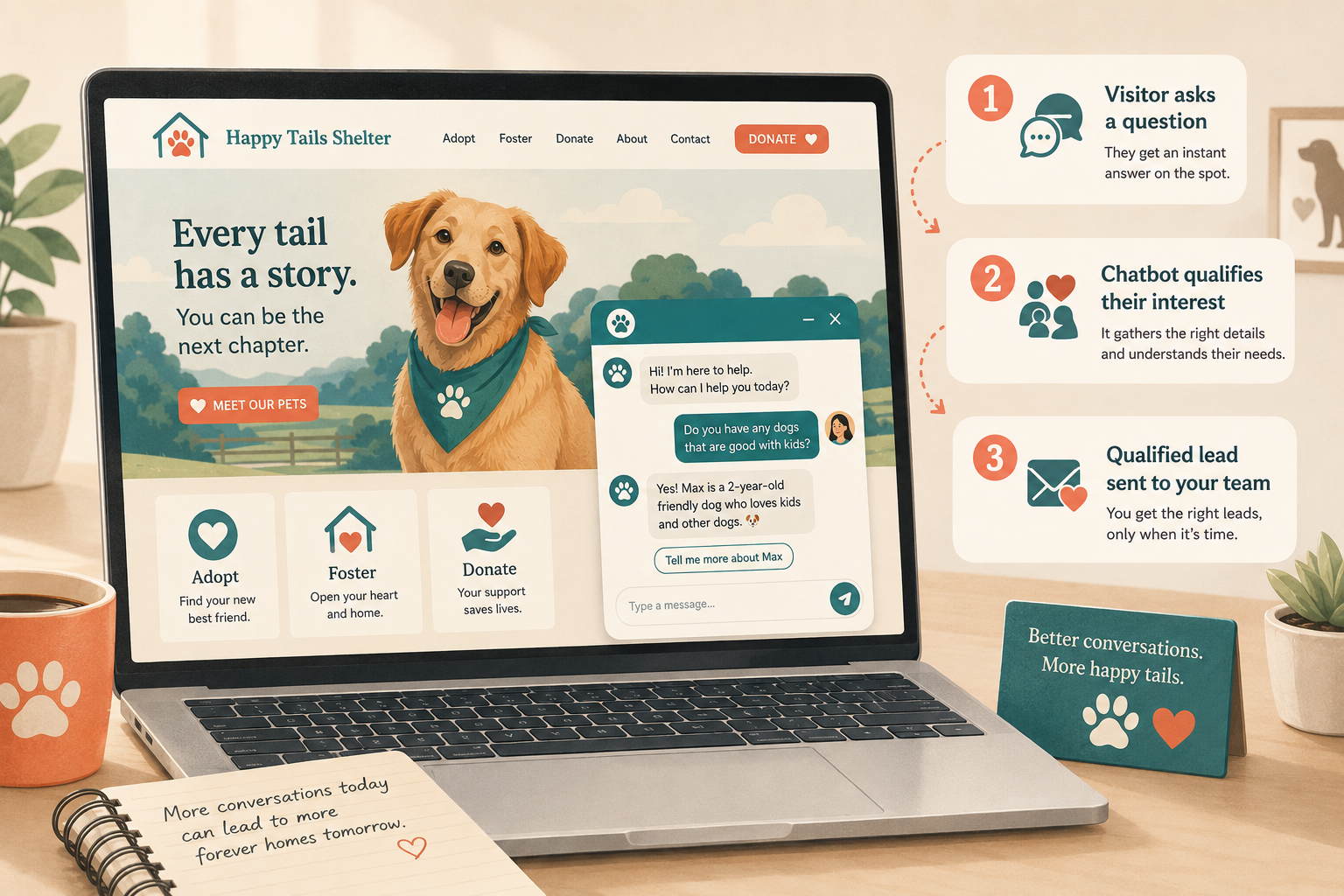
Adding a chatbot to a shelter website is a copy-and-paste job on almost every platform, not a development project. If your site runs on WordPress, Wix, or Squarespace, you can have a working chat widget live in under an hour without touching code you do not understand. This guide walks through the exact steps for each platform, what to prepare first, and how to confirm it is working before you tell your team.
To add a chatbot to a shelter website, you sign up with a chatbot provider, get either a plugin or a small snippet of embed code, and place it on your site. On WordPress you install a plugin or paste the code into the header. On Wix and Squarespace you add the code through the built-in custom-code or embed settings. No coding knowledge is required for any of them. The longest part is not the install. It is deciding what you want the chatbot to say and which pages it should appear on.
Before you start: three things to prepare
The install is fast. The preparation is what makes the chatbot useful instead of just present. Get these three things ready first.
First, decide what the chatbot needs to answer. For a shelter that usually means adoption availability, adoption fees and what they include, hours and location, fostering, volunteering, and how to donate. Write these answers down in plain language so you can load them in once the widget is live.
Second, decide where it should appear. A chatbot does not have to show on every page. The highest-value placements are adoptable-animal profiles, the homepage, the donate page, and the contact page. You can start narrow and expand.
Third, confirm who owns it. Assign one person to receive escalated conversations and to update the answers as your available animals change. A chatbot that no one maintains slowly drifts out of date.
How to add a chatbot on WordPress
WordPress powers a large share of shelter and rescue websites, and it gives you two clean paths. Most shelters should use the plugin path.
The plugin method works like this. Log in to your WordPress dashboard, go to Plugins, then Add New. Search for your chatbot provider’s official plugin, install it, and activate it. Open the plugin’s settings, connect it to your chatbot account or paste in the ID it gives you, choose which pages it should appear on, and save. Load your live site and confirm the widget shows up, usually in the bottom-right corner.
The code-snippet method is the backup when no plugin exists. Your provider gives you a small block of embed code. Add it site-wide using a header-and-footer code plugin, or place it in your theme’s header. The header-and-footer plugin is safer, because editing theme files directly can be overwritten the next time your theme updates. Save, reload your site, and check that the widget appears.
| Step | Plugin method | Code method |
|---|---|---|
| 1 | Plugins > Add New, search provider | Copy the embed code from your provider |
| 2 | Install and activate | Install a header-and-footer code plugin |
| 3 | Open settings, connect account | Paste code into the header section |
| 4 | Choose pages, save | Save settings |
| 5 | Reload site, confirm widget | Reload site, confirm widget |
How to add a chatbot on Wix
Wix does not use plugins the same way WordPress does, but it has a built-in way to add third-party code. From your Wix dashboard, open Settings, then look for Custom Code under the Advanced section. Add a new custom-code snippet, paste in the embed code your chatbot provider supplied, set it to load on all pages or only the pages you choose, and place it in the body-end or head as your provider instructs. Publish the site and confirm the widget loads on the live version, not just the editor preview.
The one thing to watch on Wix is that changes only appear after you publish. If the widget is missing, check that you published rather than only saving in the editor.
How to add a chatbot on Squarespace
Squarespace offers two routes depending on your plan. For a site-wide widget, open Settings, then Advanced, then Code Injection, and paste the embed code into the Header or Footer field. Save, and the chatbot loads across the whole site. For a single page, you can instead add a Code Block to that specific page, though the site-wide code-injection route is cleaner for most shelters.
Code Injection is available on Squarespace’s business and commerce plans. If you do not see it, confirm your plan level before assuming the widget failed to install.

After the install: load your content and test it
A widget that appears but gives generic answers is not finished. Two steps turn it into something worth having on your site.
Load your shelter’s real information. Feed in the answers you wrote down earlier, so the chatbot speaks about your adoption fees, your hours, and your process rather than boilerplate. For a per-animal chat widget, this is where each animal profile becomes its own conversation, so a visitor can ask about that specific dog or cat and get an accurate, on-topic reply.
Then test it like a visitor. Open your live site on both a phone and a computer. Ask it three or four real questions a potential adopter or donor would ask. Confirm the answers are correct, confirm it hands off to a human when it should, and confirm it does not block the page or cover important buttons on mobile. Fix any wrong answers before you announce it.
- ✓Chatbot account created with your provider
- ✓Plugin installed or embed code pasted into the correct platform location
- ✓Widget confirmed visible on the live site, not just the editor
- ✓Shelter answers loaded: adoptions, fees, hours, fostering, volunteering, donating
- ✓Appears on the right pages: animal profiles, homepage, donate, contact
- ✓Tested on mobile and desktop with real visitor questions
- ✓Human hand-off working for questions the bot cannot answer
- ✓One owner assigned to maintain answers and check escalations
Frequently asked questions
Do I need a developer to add a chatbot to my shelter website?
No. On WordPress, Wix, and Squarespace the process is installing a plugin or pasting a snippet of code your provider gives you. If you can install a plugin or edit your site settings, you can do it yourself.
How long does it take to install a chatbot?
The technical install is usually 15 to 30 minutes. Preparing your answers and testing takes longer, but most shelters can be fully live within a day.
Will a chatbot slow down my website?
Most modern chat widgets load separately from your main page content, so the impact is small. Test your site speed after installing, and pick a provider that loads asynchronously if page speed is a concern.
Can I add a chatbot to only some pages?
Yes. All three platforms let you control where the widget appears. Many shelters start with adoptable-animal profiles and the donate page, then expand.
What if my website is not on WordPress, Wix, or Squarespace?
Nearly every website builder supports adding a small embed code somewhere in its settings. The location varies, but the concept is the same: paste the provider snippet into the custom-code or header area of your site.
Conclusion
Adding a chatbot to a shelter website is far more about preparation than programming. The install itself is a plugin or a pasted snippet, and each of the three most common platforms gives you a clear place to put it. The work that matters is deciding what the chatbot should say, choosing the pages where it will help visitors most, and testing it on a real phone before you announce it. Get those right and a volunteer-run shelter can have around-the-clock answers on its website by the end of the day.