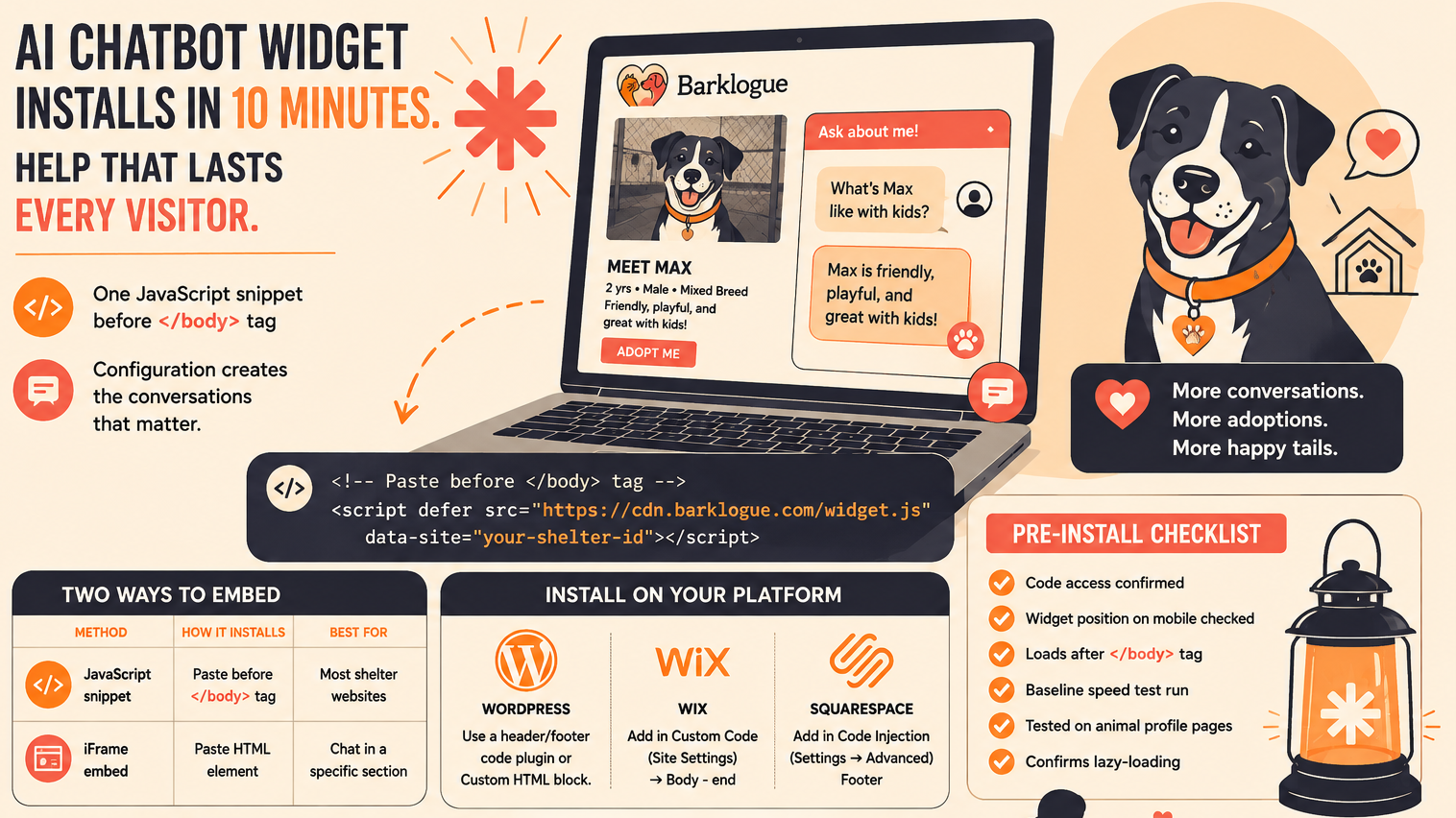
Adding a chatbot widget to a shelter website does not require a developer, a plugin subscription, or a rebuild of the site. It requires a single snippet of JavaScript placed before the closing body tag. The actual installation is a ten-minute task for any web volunteer who can access the site’s HTML or use a WordPress code block. What takes longer – and what matters more- is configuring the widget with the right animal profile data so that the conversations it enables are useful.
Quick Answer
A website AI chatbot widget for shelters installs via a JavaScript snippet added before the closing </body> tag on the site – on WordPress, this goes into a Custom HTML block or a header/footer code plugin. A well-built widget lazy-loads its heavier assets (deferring them until a visitor actually opens the chat), which keeps page speed impact minimal. The configuration work – connecting animal profiles, setting conversation flows, testing responses – is where the real setup time lives, not the installation itself.
The Two Ways a Chatbot Widget Embeds on a Shelter Website
Most chatbot platforms deliver their widget through one of two embed approaches. Understanding the difference matters before your web volunteer touches any code, because the two approaches have different performance characteristics and different installation steps.
JavaScript snippet (most common). The platform provides a short script tag – typically four to eight lines – that your volunteer copies from the widget dashboard and pastes into the site’s HTML. The browser loads this script after the main page content, initializes the widget, and displays the chat button in the corner of the screen. This is the standard embed method for WordPress, Squarespace, Wix, and any site that lets you add custom HTML.
iFrame embed (less common). Some platforms deliver the widget inside an HTML iframe element rather than a standalone script. iFrame embeds are self-contained and can be useful for placing a chat window inside a specific section of a page (rather than floating over the full site), but they offer less flexibility in terms of position and behavior.
For a shelter website, the JavaScript snippet approach is almost always correct. It gives the widget access to the full page – so it can trigger based on which animal profile the visitor is viewing – and it is the integration path supported by dedicated shelter AI chat platforms.
Embed Method Comparison
| Method | How It Installs | Flexibility | Best For |
|---|---|---|---|
| JavaScript snippet | Paste before </body> tag | High – full page context | Most shelter sites |
| iFrame embed | Paste HTML element into a page section | Low – fixed to one location | Embedded chat on a contact page |
| WordPress plugin | Install plugin, activate, authenticate | Varies by plugin | When no code access is available |
What the Widget Does to Your Site’s Speed – and How to Control It
The most common concern a shelter tech volunteer or director will have about adding a third-party widget is page speed. The concern is legitimate: third-party scripts add network requests, download weight, and JavaScript execution time. The degree to which a chatbot widget affects speed depends on how the widget loads its code.
DebugBear tested 21 chat widgets in a study updated through 2025. The download size difference between the lightest and heaviest widgets is substantial: lightweight options came in at under 70KB, while the heaviest tested reached 749KB. Critically, the performance metric that matters most for user experience – First Contentful Paint, or when a visitor first sees your page content – was unaffected by all but one widget in the test. Widgets installed before the closing body tag do not block the initial render.
The factor that separates well-performing widgets from slow ones is lazy loading. A widget that loads all of its JavaScript on page arrival – including the full chat interface, conversation history rendering, and typing animation logic – forces the browser to download that payload regardless of whether the visitor ever opens the chat. Most visitors do not open the chat. A widget that defers loading the heavier interface code until the visitor clicks the chat button avoids the full download cost for the 95%+ of sessions where the chat is never opened.
Performance Data Point
67KB vs. 749KB
DebugBear’s testing of 21 chat widgets found download sizes ranging from 67KB (Zoho Desk, which lazy-loads most interface code until a visitor opens the chat) to 749KB (dominated by a single unused SVG in Tawk.to’s bundle, since corrected). All but one widget preserved First Contentful Paint – the visitor saw the page content at the same speed with or without the widget. Source: DebugBear, updated November 2025.

Want to see how BarkLogue’s animal-specific chat widget installs on your shelter site – and what setup actually looks like?
Book a Demo CallHow Installation Works on WordPress, Wix, and Squarespace
The snippet placement steps are slightly different across the website builders shelters most commonly use. Here is what the installation looks like on each platform.
WordPress. The most reliable method for a shelter on WordPress is to add the JavaScript snippet using a header/footer code plugin (such as WPCode or Insert Headers and Footers), which places the script sitewide before the closing body tag without requiring template file edits. Alternatively, a web volunteer comfortable with the WordPress block editor can add the snippet inside a Custom HTML block placed at the bottom of each page or post where the chatbot should appear. For a widget that should appear across the entire site, the sitewide plugin method is cleaner and survives theme updates.
Wix. Wix allows custom code injection through the Wix Editor’s “Custom Code” section under Site Settings. Paste the snippet and set it to load in the “Body – end” position. The widget will then appear across all Wix pages.
Squarespace. Squarespace’s Code Injection tool (under Settings, Advanced, Code Injection) accepts custom JavaScript in a “Footer” field that applies sitewide. Paste the snippet there.
Hosted shelter management platforms. Some shelters use a hosted platform that manages both their pet listings and their public-facing website. These platforms vary in whether they support custom code injection if yours does not, check whether the chatbot provider offers a platform-specific integration or whether there is a contact page or separate WordPress blog where the widget can be installed to capture at least some traffic.
What Your Web Volunteer Needs to Do – and What They Can Skip
The installation step (pasting the snippet) is not where most of the setup time goes. Once the snippet is live, the widget shows up on the site. What happens inside it depends on configuration work that usually sits with the shelter’s operations staff, not the web volunteer.
The tasks that fall to operations staff or a shelter administrator:
- Building and maintaining animal profiles with enough behavioral and medical detail to generate useful chat responses. A chatbot drawing from a profile that says only “2-year-old Lab mix, good boy” will produce shallow conversations.
- Defining which questions the chat should answer directly versus escalate to a staff contact. Not all questions should be answered automatically – some require a human.
- Setting the shelter’s donation context: which fund the chat should reference, what emergency needs are current, and how the chat should route a visitor who wants to give.
The tasks that fall to the web volunteer:
- Accessing the site’s code injection settings and pasting the snippet.
- Verifying the widget appears on the correct pages after installation.
- Running a mobile and desktop check to confirm the widget does not overlap key content or navigation elements.
- Updating the snippet if the chatbot provider issues a new version (this is infrequent for most platforms).
A web volunteer does not need to configure the conversation logic, manage the animal data, or understand how the AI model processes responses. Those layers sit above the widget installation.
Pre-Installation Checklist for a Shelter Web Volunteer
Before You Paste the Snippet
- Confirm you have code injection access on your platform (WordPress code plugin, Wix custom code, Squarespace footer injection)
- Check where the widget button will appear on mobile – confirm it does not block your primary “Adopt” or “Donate” navigation
- Verify the widget provider’s snippet is designed to load after the closing body tag (not in the <head>) – this is the performance-safe placement
- Run a baseline Google PageSpeed Insights test on your homepage before installing, so you have a before/after comparison
- Confirm the widget has been tested on your shelter’s animal profile page layout, not just the homepage
- Ask the chatbot provider whether their widget lazy-loads its interface code – if not, ask for a lightweight or deferred load option
Frequently Asked Questions
Does a chatbot widget require ongoing maintenance from our web volunteer?
After installation, the widget itself requires little web-side maintenance. The chatbot’s conversation quality depends on keeping animal profiles current – that is an operations task, not a web task. The web volunteer may need to update the snippet if the provider releases a new version, but this is infrequent.
Will the widget slow down our shelter website?
A well-built widget that lazy-loads its assets will have a negligible effect on First Contentful Paint – the measure of when visitors first see your page content. Heavy widgets that load all their code upfront can delay image rendering on slower connections. Ask the provider for their widget’s download size and whether it uses lazy loading before installing.
Can we put the widget on only specific pages – like the animal profiles – and not on the donation form?
Yes. Most platforms let you specify which pages the widget should appear on, either through page URL rules in the dashboard or by placing the snippet on specific page templates rather than sitewide. Excluding the widget from your donation form is reasonable – you do not want the chat bubble competing with a visitor who is already completing a gift.
Does the widget work on mobile?
Yes, JavaScript snippet widgets are designed to be responsive and render correctly on mobile. Verify placement after installation – on some shelter site themes, the default widget position (bottom right corner) overlaps with mobile navigation or fixed donation buttons. Most providers allow position adjustment in the widget dashboard.
What happens if a visitor asks a question the chatbot cannot answer?
The behavior depends on configuration. A well-configured widget either escalates to a contact form, provides a staff email, or acknowledges the limit of what it can answer and directs the visitor to call or visit in person. Define this escalation path during setup – the default behavior varies by platform and should not be left to the widget’s default response.
Closing
A website AI chatbot widget for shelters installs in the same way most third-party tools do – a snippet of JavaScript placed in the right location on the page. The installation is not the hard part. The hard part is the configuration work that determines whether the chat conversations that follow are genuinely useful to a visitor making an adoption or giving decision. A widget running on thin animal profile data produces thin answers. A widget configured with specific behavioral notes, current shelter needs, and clear escalation paths produces conversations that extend engagement in a way a static site cannot. Get the snippet placed correctly, run a speed check before and after, and then invest the remaining setup time where it matters: the profile data and the conversation logic.